
Appearance
Quick Start
This walkthrough covers the full workflow from choosing a university to exporting your timetable.
1. Choose your university
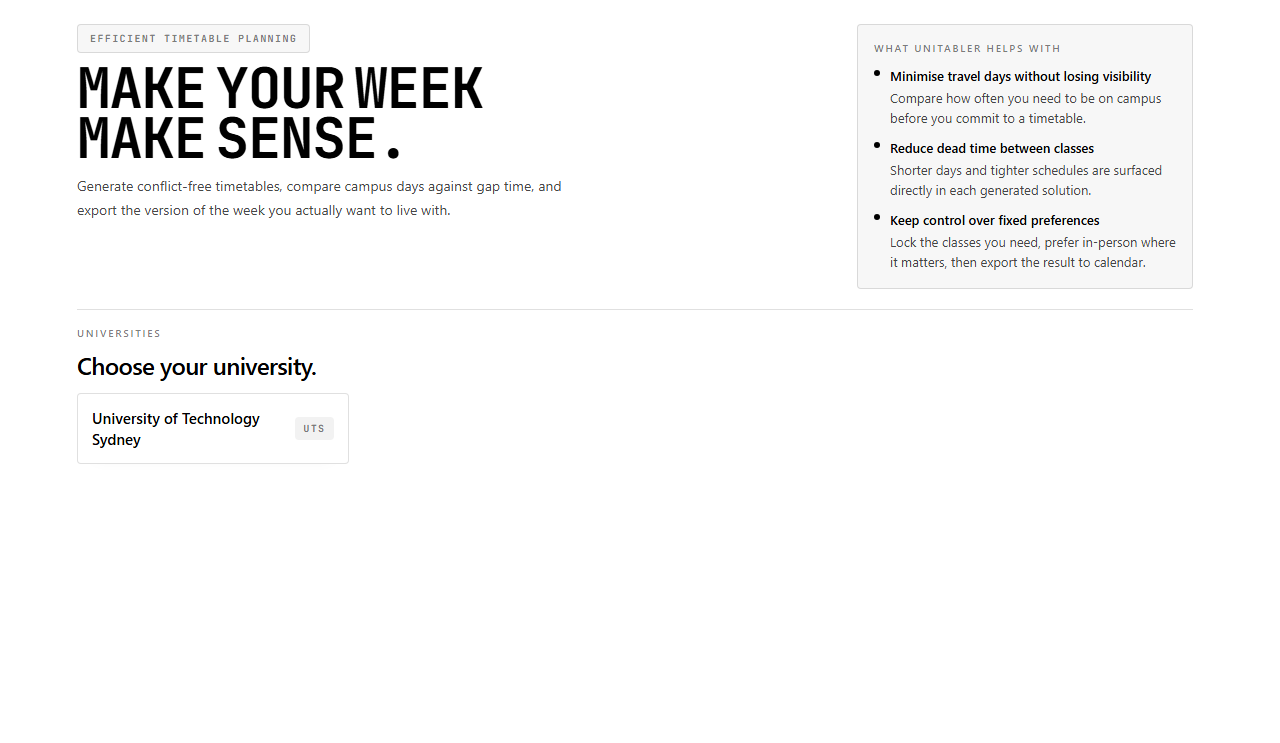
Open Unitabler. The home page lists all supported universities. Click your university's card to open its timetable planner.
2. Select a semester
Once on the timetable page, open the Semester dropdown in the sidebar and choose the semester you are planning for. The semester selector must be set before you can search for subjects.
If your university offers multiple campuses, the Campus dropdown lets you filter subject results to a specific location. Campus filtering is optional, and leaving it unset shows subjects across all campuses.
3. Add your subjects
Type a subject code or name into the search field. A dropdown appears with matching subjects. Click a subject to add it to your list.


Repeat this for each subject you are enrolling in. Each subject appears in the sidebar list with an automatically assigned colour.
4. Review activity groups
Expand each subject in the sidebar to see its activity groups, such as Lectures, Tutorials, Laboratories, and so on. Each group has a mode dropdown:
- Included: the solver must schedule this activity.
- Excluded: the solver ignores this activity entirely.
- No optimise: a class is found but not used to drive ranking.
Support activities (such as U:PASS sessions) default to Excluded. Change the mode if you want them included.
See Activity groups for full details.
5. Block unavailable times (optional)
Click any time cell on the timetable grid to block that slot. You can also drag across neighbouring cells to paint a longer blocked window, click a day heading to block an entire day column, or click an hour label to block that row across the week. Blocked slots appear highlighted. The solver treats blocked times as soft constraints. It avoids scheduling classes there, but will use them if there is no other option, showing a relaxed warning in that case.
Click a blocked slot again to unblock it.
6. Set your optimisation preference
In the bottom of the sidebar, two preference cards show the optimisation objectives:
- Minimise days on campus: ranked by how many distinct days per week you need to be at uni.
- Minimise time on campus: ranked by total idle time between classes.
The card at the top is the Primary objective. Click or drag cards to change which objective takes priority.
Enable Prefer in-person classes to online if face-to-face classes matter to you. This is especially useful because online classes do not count towards campus-day or gap-time metrics, so leaving the checkbox off can otherwise make online options look artificially better.
7. Generate
Click GENERATE. Unitabler searches for timetable solutions matching your configuration and ranks them. A loading overlay appears briefly while it works.
8. Browse solutions
The results bar appears below the grid. Each solution shows:
- A solution number (e.g. Solution 1, Solution 2, ...)
- Campus days: how many days per week you need to be on campus.
- Gap time: total idle time between in-person classes.
Use Prev and Next to move between solutions. The timetable grid updates to show the selected solution.
If a class block is draggable, drag it onto one of the preview blocks shown on the timetable to try another option from the same activity group without reopening the sidebar.


9. Lock and refine (optional)
Once you find a solution you like, click Lock All to pin all current activity selections. Subsequent generations will respect those locks, letting you explore variations within the parts you have already decided on.
To lock a single timeslot instead, expand the relevant activity group and click the specific option you want to keep. Click Clear Locks to release all pinned choices.
10. Export
When you are happy with a solution, click Export Calendar. An ICS file is downloaded, named after your university and semester (for example uts-aut-2026-timetable.ics). Import it into Google Calendar, Apple Calendar, Outlook, or any other calendar application that supports ICS files.
Next: Adding subjects in depth