
Appearance
Optimisation Preferences
The Optimisation panel in the bottom of the sidebar controls how solutions are ranked. There are two objectives, and you can set which one takes priority.
The two objectives
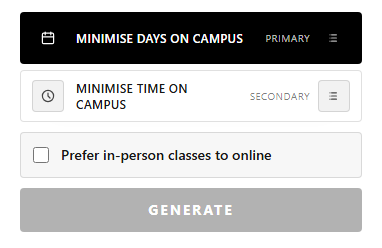
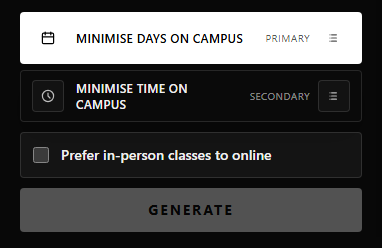
Minimise days on campus
Ranks solutions by how many distinct days per week you need to be physically present at the campus. Fewer campus days means fewer trips to uni each week.
Only in-person meetings contribute to the campus days count. Online classes do not.
Minimise time on campus
Ranks solutions by the total amount of idle time between consecutive in-person classes. Shorter gaps mean your days are more compact even if you still attend the same number of days.
Only in-person meetings contribute to the gap time calculation. Online classes are excluded.
Primary and secondary objectives
The card at the top is the Primary objective and carries more weight in the ranking. The card at the bottom is the Secondary objective and acts as a tiebreaker.
To change the primary objective, either:
- Click the secondary card to promote it to primary.
- Drag either card to the desired position.
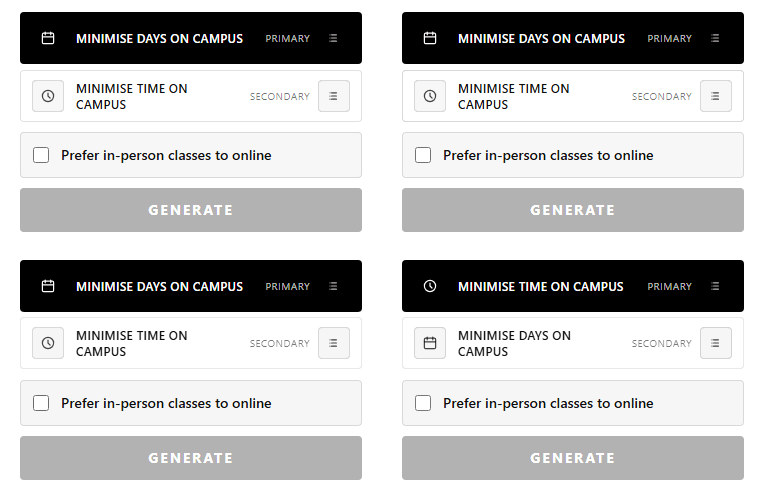
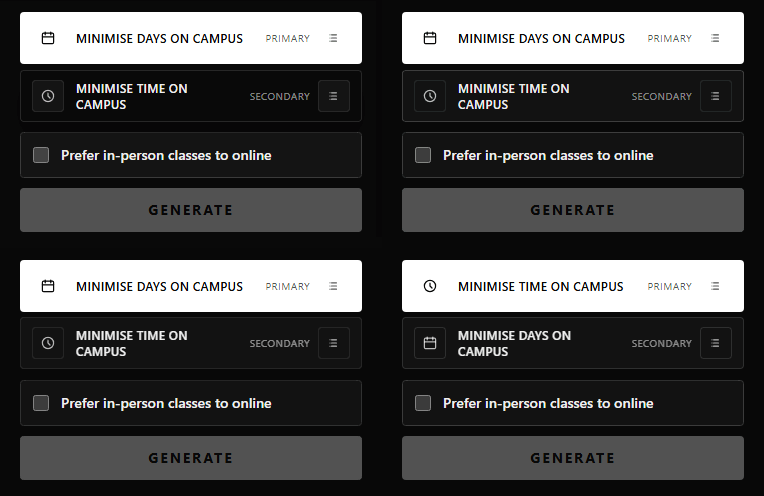
For example, if you want the fewest campus days above all else but prefer compact days when the campus-day count is equal, put Minimise days on campus on top and Minimise time on campus below it.
Prefer in-person classes to online
When this checkbox is ticked, the solver penalises online options inside mixed-mode groups that offer both online and in-person choices. Online options are still considered if they are the only valid choice.
This exists because Unitabler's on-campus metrics only count in-person teaching. Without the checkbox, a timetable with more online classes can look better simply because it produces fewer campus days and less gap time.
Turn it on if you would rather attend in person whenever there is a reasonable face-to-face option, even if that means travelling to campus more often. Leave it off if your main goal is to minimise time on campus regardless of delivery mode.
Re-generating
Any change to preferences, blocked times, subjects, or group modes triggers an automatic re-generation if you have already generated at least once. You can also click GENERATE at any time to re-run manually.