
Appearance
Blocking Times
Blocked times let you mark time slots as unavailable, for example because you work, commute, or have a fixed commitment. The solver treats blocked slots as soft constraints. It avoids scheduling classes there, but will use them if no conflict-free timetable exists without doing so.
How to block a time slot
Click any cell on the timetable grid. The cell highlights to indicate it is blocked.
You can also use the larger shortcuts built into the grid:
- Click and drag across adjacent cells to paint a longer blocked window.
- Click a day heading to block or unblock that full day column.
- Click an hour label to block or unblock that row across the whole week.
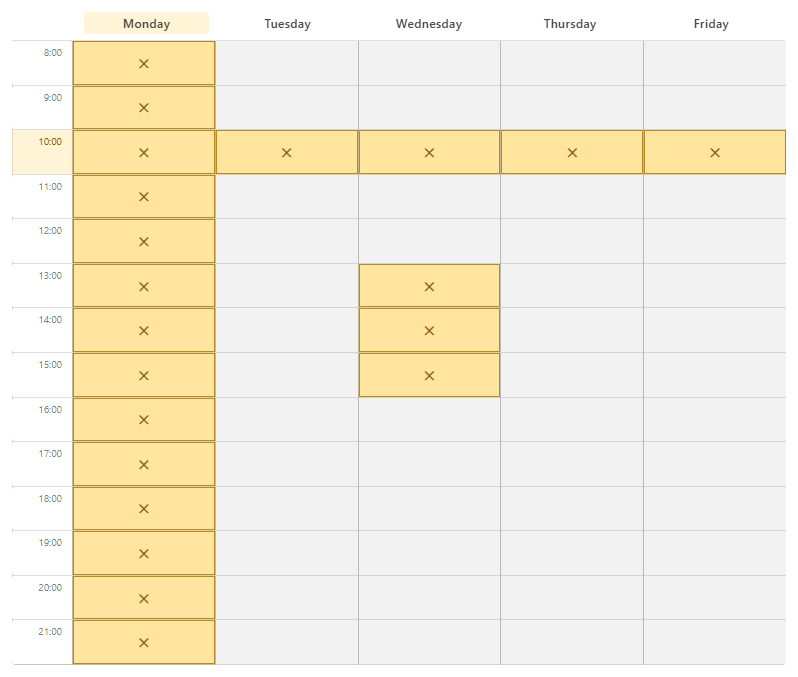
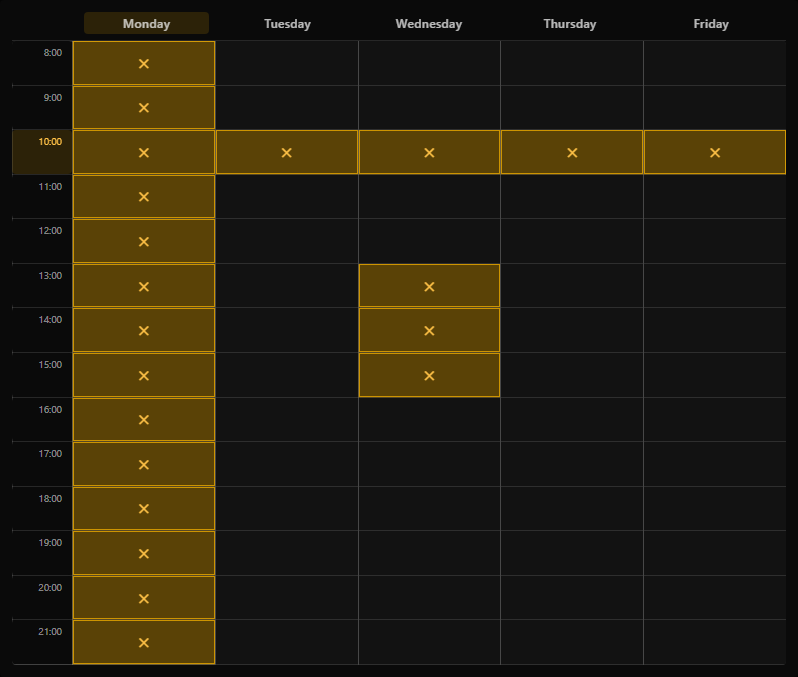
To unblock a cell, click it again.
You can combine individual cells, painted ranges, rows, and columns to represent longer or multi-day unavailability.
What happens when you block times
When generating, the solver penalises any solution that requires a class in a blocked slot. Solutions that respect your blocked times are ranked higher than those that do not.
If the only valid timetable options require using a blocked slot, the solver returns a relaxed result. The solution is still shown, but a warning banner appears and the conflicting meeting is highlighted in amber on the grid. See Reading results for details.
WARNING
Blocked times are soft constraints, not hard ones. If no valid timetable exists that avoids them, the solver will produce a relaxed solution rather than returning nothing.
Blocked times and regeneration
If you change your blocked times and there are already generated solutions, Unitabler automatically re-generates in the background after a short delay. You do not need to click Generate again.